Create a professional video ad with AI in 5 steps
I made the video below in no time with AI. No camera operator, sound engineer, editor or producer was involved. It was all done with the power of AI and a few handy tools.
Lees in het Nederlands →
I made the video below in no time with AI. No camera operator, sound engineer, editor or producer was involved. It was all done with the power of AI and a few handy tools.
In this blog, I’ll explain step by step how you can generate a video ad for your business or organisation with AI.
Step 1: the script
To start, we need a script. For this, we’re going to use our friend ChatGPT. As with any prompt, try to be as complete as possible and include as many details as you can. Here’s the prompt I used for this video:
You could no doubt take this a lot further, but for me and this demo it was fine. This was the result.
As a specialist videographer, could you write me a concise script for an ad for an IT consultancy firm specialising in low-code software solutions?

### Ad Script - IT Consultancy Firm Specialising in Low-Code Software Solutions

**Title:** "Speed Up Your Digital Transformation with Low Code"

**1. **Opening Shot:** (3 seconds)
- **Visual:** Close-up of a hand drawing a digital sketch on a tablet; the sketch smoothly transforms into a working app interface.
- **Voice-over:** "Develop faster, smarter and more efficiently."

**2. **Scene 1:** (5 seconds)
- **Visual:** A modern office, teams working together on laptops with low-code platforms visible on the screens.
- **Voice-over:** "At [Company name], we help turn your vision into reality with low-code software solutions."

**3. **Scene 2:** (7 seconds)
- **Visual:** Close-up shots of a project manager consulting with a developer, followed by a screen on which an application is built with drag-and-drop.
- **Voice-over:** "Simplify complex processes and drastically cut development time."

**4. **Scene 3:** (5 seconds)
- **Visual:** A client watching a demo on a tablet, nodding approvingly and sharing it with their team.
- **Voice-over:** "Deliver value faster and stay ahead of the competition."

**5. **Closing Shot:** (5 seconds)
- **Visual:** The company logo appears with contact details. The background shows an animated data stream making connections between different devices.
- **Voice-over:** "Transform your business with [Company name]. Your partner in low-code innovation."

**6. **Call to Action:** (5 seconds)
- **Visual:** A button saying 'Get in touch now', followed by the company’s web address.
- **Voice-over:** "Get started today. Visit us at [website]."

**Total Duration:** About 30 seconds

**Tone and Style:** Professional, forward-looking, innovative.

This script delivers a concise, powerful message and highlights the benefits of low-code solutions for businesses that want to transform and innovate quickly.

Now let’s move on to the visuals we’re going to generate with AI.
Step 2: generating images
There are plenty of ways to generate images with AI. I’ve written about that on this blog before. I usually use Midjourney for this. I have to say, though, that a few new players have recently entered the field that are very good at generating highly realistic images. Images where you can barely tell they were generated by AI. Flux from Black Forest Labs, for example, is definitely one to keep an eye on.
Now let’s generate some images for our video ad. Here too, we need prompts with enough detail. It’s best to also put the focus on hyper-realism. Here you’ll also find a tool that automatically adds more depth to your prompt, with a focus on making the image realistic.
That’s how this prompt came about:
A meticulously detailed, hyper-realistic scene: Executive in crisp suit engrossed with cutting-edge tablet, eyes gleaming with approval. Colleagues huddle close, expressions of awe. Sleek boardroom, floor-to-ceiling windows. Sunlight glints off glass and chrome. Palpable excitement. Photorealistic textures, impeccable lighting.

With this image as the result:
Admit it, that’s a pretty realistic photo for something generated by AI.
Step 3: bringing the images to life
Now that we’ve generated our images, it’s time to bring them to life with AI. There are quite a few options for this by now, but I’m going with one of the better-known ones, Runway. With Runway, you can turn images into video very easily. They also have 31 other tools:
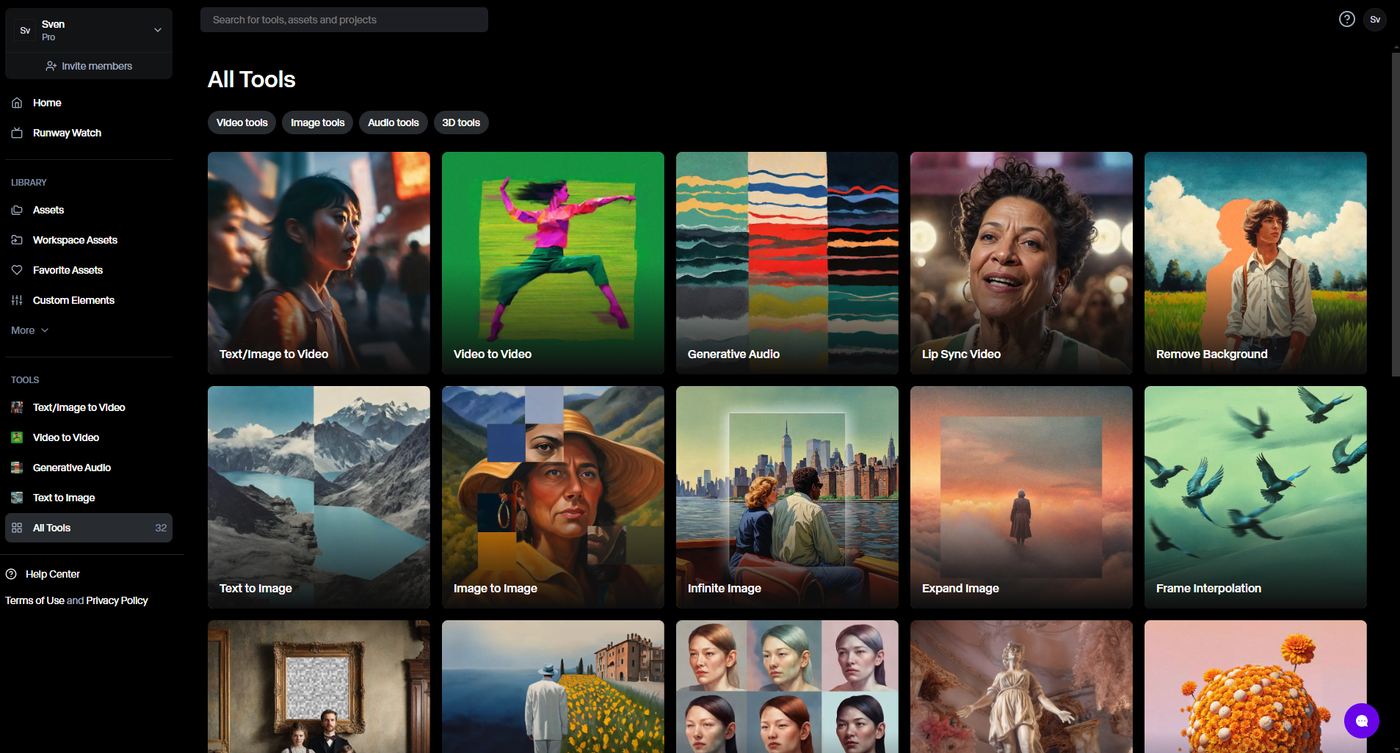
For the prompt, I used ChatGPT again. First I give ChatGPT the image I generated with Midjourney, and then I ask it to write a custom prompt for Runway. I usually ask for 3 example prompts and pick the best one. I run a test in Runway, and if I don’t like the result, I use a different prompt. The prompt I use for this:
Please write 3 gen-3 alpha prompts to animate this image, 500 characters maxAnd this is the Runway prompt I used for the image above, which I used in the video:
Animate a group of business professionals gathered around a table, with the focus on a senior executive sharing a document on a tablet. Show them smiling and interacting, with subtle movements like nodding, hand gestures, and occasional screen updates. Create a warm, collaborative atmosphere, highlighting the positive energy of the meeting.
What I did notice in this step is that you sometimes get very strange videos. A hand that suddenly has 7 fingers and the like. The trick here is to play around with the prompt and be specific. You’ll get better at it with practice.
Step 4: generating speech
When I want to turn text into speech, I almost always use ElevenLabs. Personally, I get the best results with it. Out of the box, you already have a huge number of voices available in different languages and accents. You can also make a clone of your own voice if you’d like.
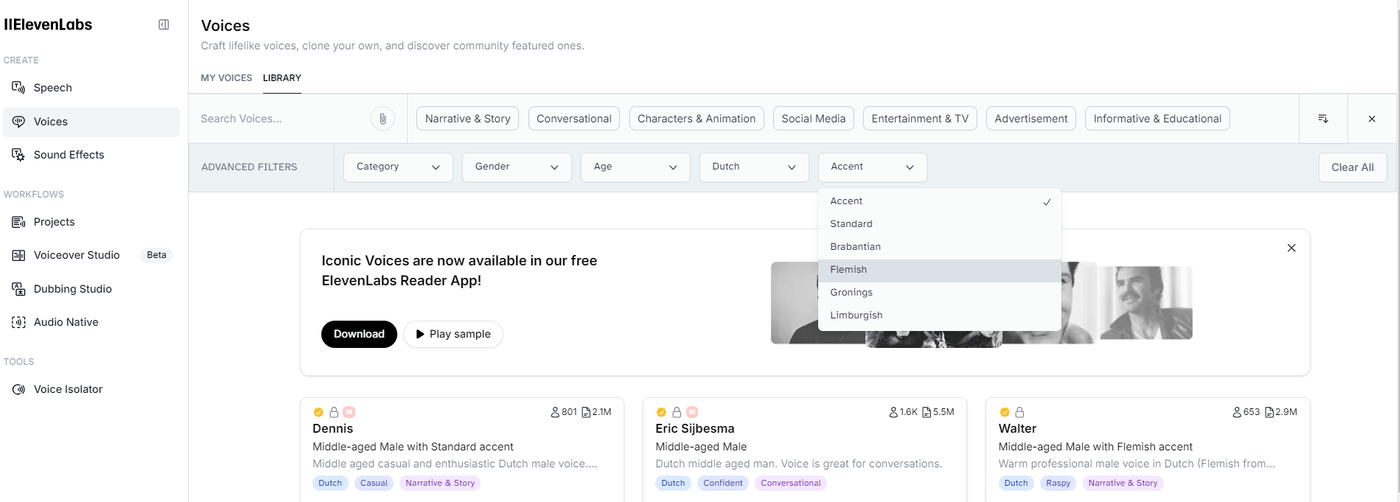
I take the lines generated in the script (in step 1) and turn them into speech.
Now we’re all set for the edit.
Step 5: bring it all together
To bring everything together, I use Canva. You can use this tool to create images and video very easily. Canva is really easy to use, so you’ll be up and running in no time. Of course there are much more professional solutions on the market, but let’s keep it simple for this demo.
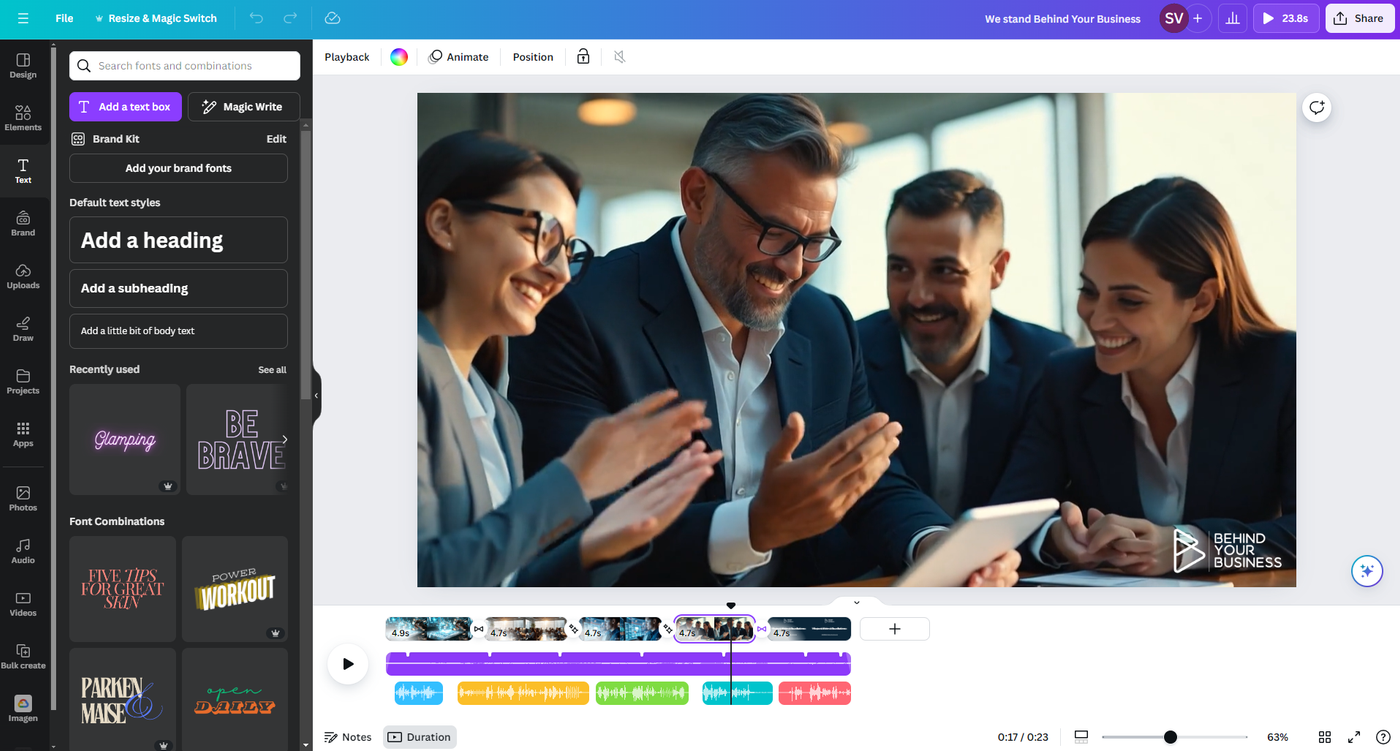
I bring the videos and speech together. I also pick a sound clip (from Canva’s audio library) for the background. A few effects on my text for the final shot, and we’re done.
Conclusion
With this blog post, my goal was to show how easily you can generate a video ad for your business or organisation with AI. Without calling in specialists, who are often very expensive. Admittedly, there are some costs involved, because Runway and Canva Pro do cost something per year, but still. And yes, if you call in specialists, the result will look more authentic than my example. But on the other hand, I do think the video ad I made here with AI already comes across as very realistic.
Don’t forget that these platforms keep evolving and will produce even better and more lifelike results over time. Either way, it was a fun experiment.